Quick Facts
| Detail | Info |
| Topic | Resetting a password on an iPhone |
| Types of passwords covered | iPhone passcode, Apple Account (Apple ID) password, app passwords |
| Key tool for Apple ID reset | iforgot.apple.com |
| iPhone locked out? | Recovery Mode or iPhone Recovery via Mac/PC |
| Face ID / Touch ID | Does NOT replace the passcode — passcode still required as backup |
| What “Erase iPhone” does | Wipes all data — only use as a last resort |
| New in iOS 17+ | iPhone Reset — reset without a computer using trusted device |
| Stolen Device Protection | Delays password changes when away from familiar locations |
| iCloud backup | Required to restore data after a full erase |
| Apple Support number (US) | 1-800-275-2273 |
| Time to reset Apple ID password | Usually 2–5 minutes with account access |
| Time to recover a locked iPhone | 30 minutes to several hours depending on method |
Introduction: Why iPhone Password Problems Are So Common
Nearly everyone experiences it at some point. You pick up your iPhone and realise you’ve forgotten the passcode. Or you try to log into your Apple Account on a new device and can’t remember the password. Or you’ve helped a child set up a phone, they forgot the code, and now it’s locked.
iPhone password issues are among the most common tech support problems there are. Apple’s security systems are designed to be genuinely protective — which means getting back in when you’re locked out requires more than a single simple step.
This guide covers every scenario clearly and honestly. Forgotten iPhone passcode. Forgotten Apple Account password. What to do when an iPhone is completely disabled. What Stolen Device Protection means for you. And how to avoid these problems in the first place.
See also “Michigan Man $1 M Lottery: How His Lucky Ticket Changed Everything“
Understanding the Difference: Passcode vs Apple Account Password
Before diving into solutions, it’s worth being clear about which password you’ve lost — because the fix is completely different depending on the answer.
Your iPhone passcode is the PIN or alphanumeric code you type directly on your iPhone’s screen to unlock it. It might be 4 digits, 6 digits, or a longer custom code. This code never leaves your device — Apple doesn’t store it and cannot retrieve it for you. If you forget it and can’t use Face ID or Touch ID, the only recovery paths involve erasing the device.
Your Apple Account password (previously called Apple ID) is the password for the account you use to access iCloud, the App Store, FaceTime, iMessage, and Apple services. This is managed by Apple’s servers and can be reset through Apple’s account recovery tools as long as you can verify your identity.
Most password problems involve one of these two. Let’s handle each in turn.

Resetting Your Apple Account Password
If you’ve forgotten the password to your Apple Account — the one associated with your email address that logs you into Apple services — this is the scenario with the most straightforward solutions.
Option 1: Reset through Settings on your iPhone
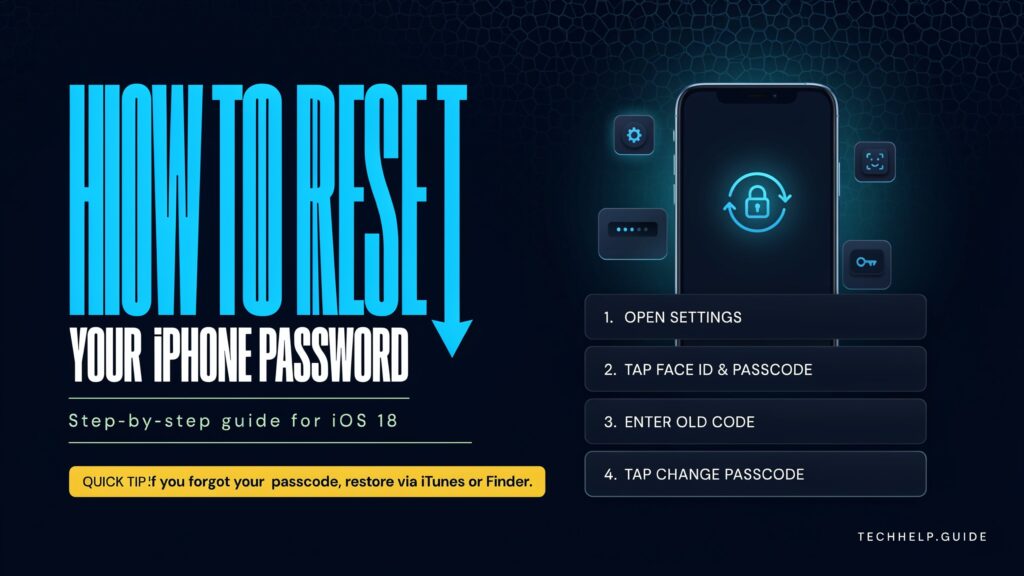
If you’re still logged into your Apple Account on your iPhone, go to Settings, tap your name at the top, then tap Sign-In & Security, then Change Password. You’ll be asked to enter your current iPhone passcode to authenticate the change, then you can set a new Apple Account password. This is the quickest method when your phone itself is accessible.
Option 2: Reset through iforgot.apple.com
Visit iforgot.apple.com on any web browser. Enter your Apple Account email address. Apple will offer several verification options depending on what you have available — a trusted phone number that can receive a text, a trusted device that can display a verification code, or recovery key if you’ve set one up. Follow the prompts to verify your identity and create a new password.
Option 3: Account Recovery
If you don’t have access to any trusted device or trusted phone number, Apple offers an account recovery process. This takes longer — sometimes days — because Apple needs to verify your identity through alternative means. You can initiate it through iforgot.apple.com. If you set up a Recovery Contact, they can generate a recovery code that bypasses the waiting period.
Resetting a Forgotten iPhone Passcode
This is the harder scenario. Apple does not store your iPhone passcode and cannot recover it for you. The only paths forward involve erasing the device.
Option 1: Erase iPhone from Settings (iOS 15.2 and later)
If your iPhone is running iOS 15.2 or later and you’ve entered the wrong passcode multiple times, you may see an “Erase iPhone” option appear on the locked screen. This option wipes all data from the phone and allows you to set it up fresh. If you have an iCloud backup, you can restore your data during setup.
Option 2: iPhone Recovery (Recovery Mode)
Recovery Mode is the traditional method and works on all iPhone models. It requires a Mac or PC with iTunes (on Windows) or Finder (on Mac).
Connect your iPhone to the computer using a cable. Put your iPhone into Recovery Mode by pressing and quickly releasing the Volume Up button, then Volume Up and quickly releasing, then pressing and holding the Side button until you see the recovery mode screen (a cable and computer icon). In Finder or iTunes on the computer, you’ll see a prompt offering to Update or Restore. Choose Restore. This erases and reinstalls iOS. After the process completes, you can set up the phone fresh and restore from backup if one exists.
The specific button sequence for entering Recovery Mode varies slightly by iPhone model, particularly for older models with a Home button. For older iPhones, the sequence involves holding the Home button and Side button simultaneously.
Option 3: Erase through iCloud.com
If Find My is enabled on the iPhone, you can go to iCloud.com, sign in to your Apple Account, go to Find My, select your device, and choose Erase iPhone. This remotely wipes the device. You’ll need to know your Apple Account password to do this — which is why having that password secured is important.
Stolen Device Protection: What It Changes
If you have Stolen Device Protection enabled — a security feature Apple introduced in iOS 17.3 — there are additional delays built into changing your Apple Account password or other sensitive settings when your iPhone is in an unfamiliar location.
Specifically, if you’re away from a location your iPhone doesn’t recognise as familiar (like your home or regular workplace), changing your Apple Account password from the device requires a one-hour security delay plus biometric authentication. This is designed to protect you if your phone is stolen — a thief who knows your passcode cannot immediately change your Apple Account password.
The practical implication: if you’re trying to reset your Apple Account password through your iPhone while travelling or in an unfamiliar location, you may experience this delay. This is the security working as designed. If you need to bypass it, use iforgot.apple.com from a different device.
Resetting App Passwords
A third category worth addressing is app-specific passwords — the password for a particular app like Gmail, your bank app, or a social media account.
Most apps have a “Forgot Password” link on their sign-in screen. Tapping this initiates that service’s own account recovery process — usually sending a reset link to your email or a code to your phone number. This is entirely independent of Apple and follows the rules of whichever service you’re logging into.
For apps that use Sign in with Apple, your access is tied to your Apple Account. Recovering access to those apps goes through recovering your Apple Account, as described above.
Preventing the Problem: Best Practices
The best password scenario is one where you never need to recover.
Write down your iPhone passcode and store it somewhere physical and secure. Not in your phone notes. Not in an email. Somewhere physical — a home safe, a lockbox, a secure document folder. A passcode you can look up is a passcode you never have to recover from.
Set up a Recovery Contact for your Apple Account. A Recovery Contact is a trusted person who can generate a recovery code for your Apple Account if you lose access. You set this up in Settings under your Apple ID information. This person doesn’t see your password or account details — they simply receive a recovery code if you request it.
Keep your trusted phone number current. Apple’s account recovery relies heavily on sending verification codes to your trusted phone number. If that number has changed and you haven’t updated it in your Apple Account settings, account recovery becomes significantly harder.
Enable iCloud backup. If you ever need to erase your iPhone to recover from a forgotten passcode, an iCloud backup means your data can be restored afterward. Turn it on in Settings under your name, then iCloud, then iCloud Backup.
Use a memorable passcode. A 6-digit code that means something to you personally — not your birthday, which is too guessable — is both secure and memorable. Custom alphanumeric codes are more secure but harder to recall. Find the balance that works for you.
See also “Michigan Man $1 M Lottery: How His Lucky Ticket Changed Everything“
Final Words
iPhone password problems feel urgent and stressful in the moment. The screen won’t unlock, the account won’t accept the password, and the options in front of you look intimidating.
The reality is that Apple has built multiple recovery paths for almost every scenario. Forgotten Apple Account password? iforgot.apple.com handles it quickly if you have a trusted device or number. Forgotten iPhone passcode? Recovery Mode gives you a clean path through a computer. Locked yourself out completely with no backup? Apple’s account recovery process, while slower, still offers a route.
The time to set up recovery options is right now, while you have access to everything. A Recovery Contact, a current trusted phone number, an iCloud backup, and a physical record of your passcode somewhere secure — these four things together mean you’ll never be fully stuck.
FAQs
1. How do I reset my iPhone passcode if I’ve forgotten it?
You’ll need to erase and restore your iPhone. Options include the Erase iPhone option that appears on the locked screen after multiple wrong attempts (iOS 15.2+), Recovery Mode through a Mac or PC, or remote erase through iCloud.com using your Apple Account.
2. How do I reset my Apple Account (Apple ID) password?
Go to iforgot.apple.com on any browser and follow the prompts. You’ll verify your identity through a trusted device or trusted phone number. Alternatively, go to Settings on your iPhone, tap your name, Sign-In & Security, and Change Password — this requires your iPhone passcode to authenticate.
3. Will I lose all my data if I erase my iPhone to recover from a forgotten passcode?
You’ll lose data that wasn’t backed up. If you had iCloud backup enabled and running regularly, you can restore your data when you set the phone up again after the erase. This is why keeping backups current matters.
4. What is Recovery Mode and how do I use it?
Recovery Mode is a state your iPhone enters that allows a computer to restore iOS. Connect to a Mac (using Finder) or PC (using iTunes), put the iPhone into Recovery Mode using specific button combinations, then choose Restore when the option appears. The exact button sequence varies by iPhone model.
5. What is Stolen Device Protection and does it affect password resets?
Stolen Device Protection adds delays and additional biometric requirements to sensitive actions — including changing your Apple Account password — when your iPhone is in an unfamiliar location. It’s designed to protect against theft. It can slow down legitimate password resets if you’re away from home.
6. Can I reset my iPhone passcode without a computer?
On iPhone running iOS 15.2 or later, an Erase iPhone option may appear on the locked screen after enough wrong attempts, allowing you to reset without a computer. You’ll need your Apple Account credentials to complete the setup afterward.
7. What if I forgot both my iPhone passcode and Apple Account password?
This is the hardest scenario. You’ll need to use Recovery Mode through a computer to erase the device, and separately use Apple’s account recovery process at iforgot.apple.com to recover your Apple Account. The account recovery process can take several days without trusted contacts or devices.
8. What is a Recovery Contact and how do I set one up?
A Recovery Contact is a trusted person who can help you recover access to your Apple Account by generating a recovery code. Set it up in Settings under your Apple ID, then Sign-In & Security, then Account Recovery. The person needs to have an Apple device and iOS 15 or later.
9. How do I reset a password for a specific app on my iPhone?
Use the app’s own “Forgot Password” feature on its sign-in screen. This follows that service’s recovery process, typically sending a reset link to your email. This is independent of Apple — you’re resetting the account for that service, not an iPhone system password.
10. Can Apple unlock my iPhone for me if I forget the passcode?
No. Apple does not store your iPhone passcode and cannot recover it. Apple’s security design specifically prevents this. The only recovery paths involve erasing the device.
11. How long does Apple Account recovery take without a trusted device?
It can take several days. Apple’s account recovery process without a trusted device or trusted phone number involves Apple verifying your identity through other means and involves a waiting period for security reasons.
12. What’s the best way to prevent iPhone password problems in the future?
Set up a Recovery Contact, keep your trusted phone number current in your Apple Account, enable iCloud backup, and keep a physical record of your iPhone passcode in a secure location. These four steps together prevent the vast majority of lockout scenarios.
Explore ideas that elevate your thinking with The Elevate Magazine.