Quick Facts
| Detail | Information |
| Topic | Saving Outlook emails as PDF files |
| Applies To | Microsoft Outlook (Windows, Mac, Web/OWA, Mobile) |
| Primary Method | Print → Microsoft Print to PDF / Save as PDF |
| Other Methods | Export function, third-party tools, VBA macros, browser print |
| File Format | PDF (Portable Document Format) |
| Best For | Archiving, legal records, sharing, compliance, offline storage |
| Difficulty Level | Easy to moderate depending on method |
| Cost | Free built-in methods available; paid tools offer advanced features |
| Supported Versions | Outlook 2016, 2019, 2021, Microsoft 365, Outlook for Mac, Outlook Web App |
| Attachments Included? | Not by default — attachments require separate handling |
Introduction: Why Saving an Outlook Email as PDF Actually Matters
You would think saving an email as a PDF would be simple. Click something, choose a format, done. And honestly, in most cases it is pretty simple once you know where to look. But if you have ever gone hunting for a “Save as PDF” button inside Microsoft Outlook and come up empty, you are not imagining things. It is not sitting in an obvious spot, and Outlook handles this task differently depending on which version you are using and what operating system you are on.
That gap between what people expect and what the interface actually offers is exactly why this topic gets searched for millions of times every year. People need to save emails as PDFs constantly — for legal documentation, business records, compliance requirements, personal archives, or simply because they need to share an email with someone who does not use Outlook. PDF is the universal format. It looks the same on every device. It cannot be accidentally edited. It is accepted by courts, accountants, clients, and compliance officers alike.
This guide walks through every reliable method for saving Outlook emails as PDFs across every major version of the platform. Whether you use Outlook on Windows, on a Mac, through a browser, or on your phone, there is a path here that works for you.
See also “Can You Transfer 529 Plans to Another State? The Complete Guide Every Parent Needs to Read“
Why PDF Is the Right Format for Email Archiving
Before diving into the how, it is worth spending a moment on the why — because understanding what makes PDF the right choice for email preservation helps you use it more deliberately.
The PDF format was created by Adobe in the early 1990s with one core goal: documents should look exactly the same regardless of what device, operating system, or software views them. A PDF opened on a Windows laptop in New York looks identical to the same file opened on a Mac in Tokyo or an Android phone in London. The formatting, fonts, layout, and content are locked in place.
For emails, that consistency matters enormously. An Outlook message stored in its native .MSG format can only be opened by software that understands that format — primarily Outlook itself. An email saved as a PDF can be opened by virtually anything: Adobe Reader, Chrome, Safari, Preview on Mac, and dozens of other applications. It requires no special software. It does not expire. It does not depend on an active email account or internet connection.
For business and legal purposes, PDF offers something else valuable: the appearance of finality. A PDF record of an email exchange is widely understood as a snapshot of that communication at a specific point in time. Courts accept PDFs as documentary evidence. Auditors accept them. Clients accept them. That implicit credibility is part of what makes PDF the standard for any email that needs to be preserved formally.
Method 1: The Print to PDF Approach (Windows — All Versions)
This is the method that works on every version of Outlook for Windows, requires no additional software, and takes about thirty seconds once you know the steps. It is not labeled “Save as PDF” inside Outlook, which is why so many people miss it — but it accomplishes exactly that.
How it works:
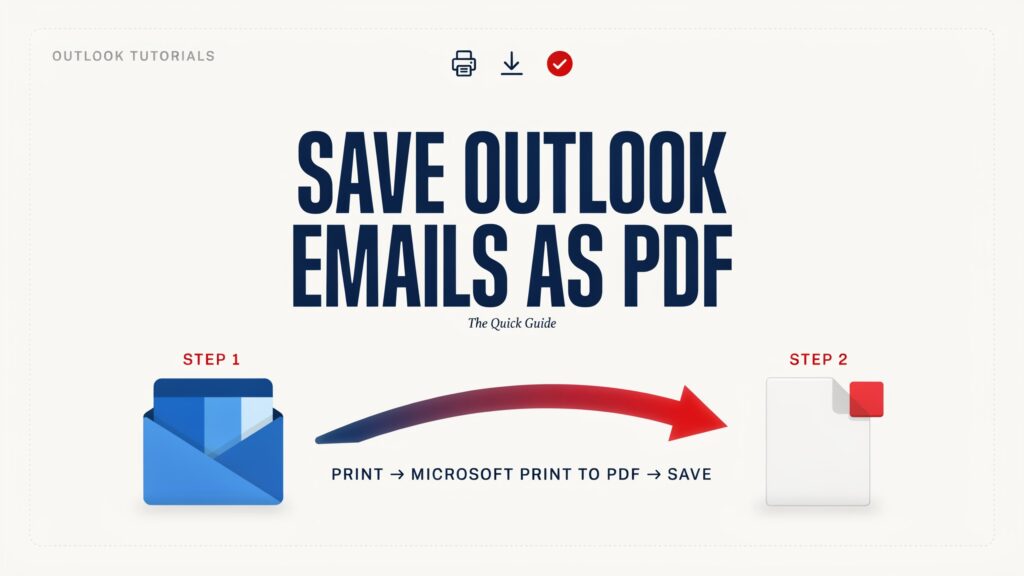
Open the email you want to save. From the top menu, select File. Select Print from the left-hand panel. In the printer selection dropdown, instead of choosing a physical printer, choose Microsoft Print to PDF. This is a virtual printer built into Windows 10 and Windows 11 that converts whatever you are printing into a PDF file instead of sending it to paper.
Click Print. A Save As dialog box will appear. Choose where you want to save the file, give it a meaningful name, and click Save.
That is it. The result is a clean, properly formatted PDF of your email — including the sender name, recipient, date, subject line, and full body text.
A few things worth knowing:
- The email header information (From, To, Subject, Date) is included automatically.
- Inline images within the email body are included.
- Attachments are not included — they are separate files and need to be saved separately.
- The page layout follows your Outlook print settings, so very long emails will span multiple pages.
If you do not see Microsoft Print to PDF in your printer list, you may need to enable it. Go to Control Panel, then Programs, then Turn Windows features on or off, and check the box next to Microsoft Print to PDF.
Method 2: Saving Outlook Email as PDF on a Mac
Mac users have a slightly different path, but it is equally straightforward once you find it.
Open the email in Outlook for Mac. Go to File in the menu bar at the top of the screen. Select Print. In the print dialog that appears, look at the bottom left corner. There is a small dropdown button labeled PDF. Click it and select Save as PDF from the options that appear.
A Save dialog box will open. Name your file, choose your save location, and click Save.
The result is a PDF that looks clean and properly formatted, capturing all the visible content of the email. This method uses macOS’s built-in PDF generation capability, which is integrated at the operating system level on every Mac — meaning it works with Outlook and essentially every other application on the platform.
One additional Mac option: if you want slightly more control over the output, you can choose Open PDF in Preview instead of saving directly. This opens the file in Apple’s Preview application first, where you can review it, annotate it if needed, and then save from there.
Method 3: Outlook Web App (OWA) and Outlook.com
If you access Outlook through a browser — either at outlook.office.com for work accounts or outlook.com for personal Microsoft accounts — the process is a little different because you are working in a web application rather than a desktop program.
Open the email you want to save. Look for the three-dot menu (sometimes called the More actions or ellipsis menu) in the email toolbar. Select Print. This opens a print preview window in your browser.
In the browser’s print dialog, find the destination or printer selector and choose Save as PDF. This is available by default in Chrome, Edge, Firefox, and Safari without any additional setup.
Click Save. Choose your file name and location, and you are done.
The browser-based approach produces a slightly different visual result than the desktop Outlook method, since you are essentially printing a web page rather than a native Outlook message. The content is all there, but the layout reflects the browser’s rendering rather than Outlook’s desktop formatting. For most purposes this is perfectly adequate. For formal legal or compliance archiving where layout consistency matters, the desktop method is preferable.
Method 4: Saving Multiple Emails as PDF at Once
Here is where most basic guides fall short, and where a lot of people hit a wall. The built-in methods described above work well for one email at a time. But what if you need to save fifty emails from a project thread? Or archive an entire folder at once?
Microsoft Outlook does not have a built-in bulk email-to-PDF feature. You have a few options when volume matters.
Option A: Third-party tools. Several dedicated applications handle bulk Outlook-to-PDF conversion. Tools like Adobe Acrobat’s Outlook integration, Kernel for Outlook to PDF, and Total Outlook Converter allow you to select multiple emails and export them all as individual PDFs or as a single combined document. These tools also typically handle attachments more gracefully than the built-in print method.
Option B: VBA macros. If you are comfortable with basic programming, Outlook’s built-in VBA (Visual Basic for Applications) environment allows you to write a short script that loops through selected emails and saves each one as a PDF. This is genuinely powerful for recurring workflows and does not require purchasing additional software. Dozens of reliable VBA scripts for this exact task are freely available online.
Option C: Power Automate. Microsoft’s Power Automate platform (formerly Flow) can be configured to automatically save incoming emails matching certain criteria as PDFs, storing them in OneDrive or SharePoint. This is the most sophisticated option and works well for organizations with compliance requirements that need automated archiving without manual intervention.
Handling Attachments: The Part Everyone Forgets
This deserves its own section because it is the most common source of confusion when people save emails as PDF.
When you save an Outlook email as a PDF using any of the methods described above, you are saving the email body — the text, the inline images, the header information. You are not saving the attachments. Attachments are separate files. They live alongside the email but are not part of the email body itself.
If you need to preserve an email and its attachments together as a single package, you have a few approaches.
Save the email and attachments separately, keeping them in the same folder with a consistent naming convention. For example: “2026-10-30 Project Contract Email.pdf” and “2026-10-30 Project Contract Attachment.docx” in the same folder. This is simple and works well.
Combine them into a single PDF using a PDF editor like Adobe Acrobat or a free alternative like PDFsam. Save the email as a PDF, convert the attachment to PDF, then merge the files into one document. This takes an extra step but produces a single self-contained archive.
Use a third-party Outlook plugin that handles attachment inclusion automatically. Several tools in the market specifically address the email-plus-attachments-to-PDF workflow and can be configured to include, exclude, or separately export attachments as part of a batch process.
Saving Outlook Emails as PDF on Mobile
For iPhone users with the Outlook app installed, the process goes through iOS’s sharing and printing system.
Open the email. Tap the three-dot menu icon. Choose Print. In the print preview, use the pinch-to-zoom gesture on the preview image, which transforms it into a PDF viewer. Tap the Share icon. Select Save to Files and choose your destination.
For Android users, the process is similar. Open the email in the Outlook app. Tap the three-dot menu and choose Print. In the print dialog, select Save as PDF from the printer options. Choose your save location and confirm.
Mobile PDFs are functional for basic archiving and sharing purposes. The formatting may not be as precise as desktop output, particularly for complex HTML emails with elaborate formatting, but for standard business correspondence they work well.
Naming and Organizing Your Saved PDFs
One practical aspect that most guides skip entirely: how you name and organize your saved email PDFs matters as much as the saving itself.
A PDF called “Email.pdf” stored in your Downloads folder is almost impossible to find six months later. A PDF called “2026-10-30 ClientName ProjectUpdate Reply.pdf” stored in a structured folder is always findable.
A simple naming convention that works well for most purposes:
[YYYY-MM-DD] [Correspondent] [Subject Summary] [Direction]
So an email from Sarah Chen about a contract revision received on October 30, 2026 becomes: “2026-10-30 SarahChen ContractRevision Received.pdf”
Putting the date first means files sort chronologically automatically in any folder view. This alone saves enormous amounts of search time when you need to find a specific email months later.
For organizations handling large volumes of email archiving, a tiered folder structure by year, month, project, or client makes retrieval even faster. The naming convention and folder structure you choose matter more over time as your archive grows.
When to Use PDF vs. Other Outlook Export Formats
PDF is the right choice for most email saving purposes, but it is not the only format Outlook can work with, and knowing when to use something different is useful.
MSG format is Outlook’s native email file format. It preserves everything — the email metadata, formatting, attachments, and all header information — and can be reopened in Outlook just like a live email. If you are archiving emails for potential future use within Outlook (searching, forwarding, replying), MSG is the better preservation format. If you are archiving for display, sharing, or documentation, PDF is better.
EML format is a more universal email format supported by many email clients beyond Outlook. It is useful for cross-platform archiving when the emails might need to be opened in a different email client later.
HTML format saves the email as a web page, which preserves formatting and inline images but requires a browser to view properly and does not travel well as a standalone document.
Plain text strips all formatting and produces a simple text file containing only the email’s words. This is rarely ideal for archiving but works for extracting text content quickly.
For most people in most situations — sending an email to an accountant, submitting a record to legal, sharing with someone outside the organization, or storing a personal archive — PDF wins.
Final Words
Saving Outlook emails as PDFs is one of those tasks that seems like it should be obvious, turns out to be slightly hidden, and becomes completely straightforward the moment you know where to look. The Print to PDF method works reliably across every version of Outlook on Windows. The Mac approach takes one extra click through the print dialog. The web version goes through the browser. Mobile has its own path through the share menu.
The right method depends on your version, your volume, and your purpose. For occasional single-email archiving, the built-in print methods are entirely sufficient. For bulk archiving, compliance workflows, or attachment handling at scale, dedicated tools earn their place.
Whatever your situation, understanding how to reliably save emails as PDFs gives you genuine control over your own correspondence records — a quiet but meaningful form of digital self-sufficiency.
FAQs
1. Why isn’t there a “Save as PDF” button directly in Outlook?
Outlook’s native export options are focused on email-specific formats like MSG and PST. PDF export is handled through the print system rather than a direct Save As function, which is why the path goes through File → Print → PDF printer rather than a visible PDF button.
2. Does saving an email as PDF include the attachments?
Not by default. The print-to-PDF method captures the email body and header information. Attachments are separate files and need to be saved independently. Third-party tools can combine emails and attachments into a single PDF if needed.
3. Will the PDF look exactly like the email in Outlook?
Very closely, yes. The desktop print method preserves formatting, fonts, inline images, and header details accurately. Complex HTML emails with elaborate layouts may occasionally have minor formatting differences, but for standard business emails the output is essentially identical to the on-screen appearance.
4. Can I save multiple Outlook emails as PDF at once?
Not through Outlook’s built-in tools — the native methods handle one email at a time. For batch conversion, options include third-party tools like Total Outlook Converter or Kernel for Outlook to PDF, VBA macros written in Outlook’s built-in scripting environment, or Microsoft Power Automate for automated workflows.
5. How do I save an Outlook email as PDF on a Mac?
Open the email, go to File → Print, click the PDF dropdown in the bottom left corner of the print dialog, and select Save as PDF. Name your file, choose a save location, and click Save.
6. Can I save an Outlook email as PDF on my phone?
Yes. On iPhone, open the email in the Outlook app, tap the three-dot menu, choose Print, then pinch-to-zoom the print preview to convert it to a PDF, and use the Share button to save it to Files. On Android, go to the three-dot menu, choose Print, and select Save as PDF from the printer options.
7. What is the best free method for saving Outlook emails as PDF?
The Microsoft Print to PDF method on Windows and the built-in PDF save option on Mac are both completely free and require no additional software. They work reliably for single-email saving and are the recommended starting point for most users.
8. Does the saved PDF include the sender’s name, date, and subject line?
Yes. The print-to-PDF method captures the full email header as it appears in the printed version of the email, including From, To, Cc, Subject, and Date fields.
9. How do I find Microsoft Print to PDF if it’s not showing in my printer list?
Go to Control Panel → Programs → Turn Windows features on or off. Scroll down to find Microsoft Print to PDF and make sure the checkbox is selected. Click OK and the virtual printer will appear in your printer list.
10. Is a PDF of an email legally valid as evidence or documentation?
In most jurisdictions, a PDF capturing an email’s content is accepted as documentary evidence in legal proceedings and by regulatory bodies. For the most rigorous legal purposes, preserving the original MSG file alongside the PDF is recommended, as the native format contains more verifiable metadata.
11. Can I save an email as PDF directly from Outlook Web App without installing anything?
Yes. In Outlook on the web, open the email, access the three-dot menu, choose Print, and in the browser’s print dialog select Save as PDF as the destination. This uses the browser’s built-in PDF capability and requires no additional installation.
12. What naming convention should I use for saved email PDFs?
A date-first naming convention works best for long-term organization: [YYYY-MM-DD] [Correspondent] [Subject Summary] is a practical standard. Putting the date first ensures files sort chronologically automatically, making archives easy to navigate months or years later.
Explore ideas that elevate your thinking with The Elevate Magazine.